Sign up and you are in the same day
Pick a plan on the pricing page and pay. The receipt takes you straight to sign up, where you choose your dashboard address and confirm your email. Your account is ready the same day, in test mode, so nothing reaches a supplier until your go live call.
Your business gets its own dashboard address. A sign-in is still required and each person only sees the areas their role and permissions allow.
Worth knowing
• Use a business email you actually check. Supplier replies and delivery confirmations come back to it.
• Nothing sends to a supplier until you say so. Your account stays in test mode until the go live call, where we check your settings together.
2
Suppliers and products bulk importOne spreadsheet builds your suppliers, sections and products
One file does all three. The import creates any supplier it has not seen, creates the storage sections named in the file and adds the products against both. A ready template lets us use the one-hour setup call for configuration and testing. It does not have to be complete. Fifty lines of what you actually order every week is enough to start.
Product name What your team calls it. Fior di latte, not FDL-1KG-CS.
Supplier Who sells it. This is what drives the split.
Section Where it lives, so it appears under the right filter.
Category What kind of thing it is. Free text with autocomplete.
Unit Case, kg, each, sack. Whatever the supplier will understand on the order.
Order instruction A note to whoever is building the order, shown under the product on the order screen. It never reaches the supplier, so use it for ordering guidance such as usually six cases a week. Restockd records the quantity to order. It does not calculate that quantity from a stock count.
Importing from CSV. If you already have a product list, export it as a CSV and import it in one go. Restockd maps supplier, section, category and your ordering notes on the way in, so a list of two hundred products takes minutes rather than an evening. Download the template from the import screen so your columns line up.
The one that catches people out
• Keep the header row as the first row. A blank first row leaves Restockd with no recognised column names, so nothing is imported. It does not turn the header into a product or remove a supplier email.
• Existing supplier names are matched without regard to capital letters or spaces at either end. If a supplier name is new, Restockd creates it only when the person importing may manage suppliers. Otherwise that row is skipped and reported. A product is never imported without a supplier attached.
Every supplier and the email their order goes to
This is the single most important setup step, because the supplier email address is where the order actually lands. Get it right once and you never think about it again.
Supplier name What your team calls them, not their registered company name.
Order email The address their orders go to. Check it carefully. A typo can send the order to the wrong inbox or make delivery fail. Where the mail provider reports a hard failure, Restockd records it and alerts the business.
Note to supplier Text that appears on every order to them, for example your account number or delivery instructions.
Internal note Only your team sees this, for example the cut off time for next day delivery.
Portal supplier Tick this for suppliers like Brakes or Amazon who only take orders on their own site. See step five.
Do this before you go any further
• Send yourself a test order to one supplier before you send a real one. Two minutes now saves a missed delivery later.
• If a supplier takes orders on WhatsApp only, put your own email in for now and forward it. Restockd will still build the correct list.
The suppliers who will not take an email and the tools that handle them
Some suppliers only take orders through their own website. On Connected and Managed the Restockd browser extension handles them. It fills the basket on the supplier site, you review every line and you check out yourself. Chrome or Edge on a desktop, from the Chrome Web Store.
On Essentials, add your own email address to these suppliers and the order lands in your inbox as a clean list, ready to copy and paste into their website by hand.
Add and manage products by hand
Products can be added one at a time too, with everything the order screen needs: unit, pack size, section, cost and an order instruction for staff. Edit a product later and the change applies from the next order.
Sections are where each product lives, not what it is
A section is an area you work through when building an order: Walk-in, Freezer, Dry Store, Bar or Cellar. Each one gets a colour, and those colours become the filter buttons on the order page. This turns a long catalogue into a practical ordering walk through the building.
Set your sections up in the order you work through the building. If you visit the freezer before the dry store, arrange them that way.
Section or category?
• Section is where it is stored. It drives the colour filters on the order page.
• Category is what it is, for example Dairy, Meat or Packaging. It is separate from the section used to organise the order screen.
• Sections can be switched off entirely in Settings if you have a small product list and do not need them.
See exactly what a supplier gets, before one does
Test mode is a switch in Settings. With it on, emails that would have gone to suppliers go to your test address instead, marked TEST and naming the intended supplier. We turn it on before we build anything, send two or three test orders and read them in your own inbox. Then we turn it off together when you are ready to send for real.
Worth knowing
• Test mode needs a test address in Settings. With test mode on and no address set, nothing sends at all rather than quietly going out to real suppliers.
• Test mode does not make a supplier website safe. Checkout on a supplier site is still real. Restockd also blocks cancellation of a real emailed order while test mode would divert the cancellation. A delivery query about a real order still goes to the real supplier.
Walk the sections and tap the numbers
Open the order page on a phone or tablet. Tap a section filter, for example Walk-in, and only walk-in products show. Decide what you need to order, enter that quantity and move on. Switch to the next section and repeat.
You do not need to build a separate order for each supplier. That is the whole idea. You enter one set of order quantities and Restockd groups the lines using the supplier saved on each product.
Quick add is on the right on desktop and at the top on a phone. Use it when somebody calls out a one-off item while you are building the order. It joins this order only and is not added to the catalogue.
Worth knowing
• Group by section can be toggled on so the whole list is broken into headed blocks rather than filtered one at a time.
• Each quantity is sent to Restockd as you change it. If the connection drops, that device queues the latest unsent values and retries when the connection returns. Check the pending warning before leaving the device or opening Review, because a value is safely shared only after it reaches Restockd.
9
Delivery dates and notesTell them when you want it and anything they need to know
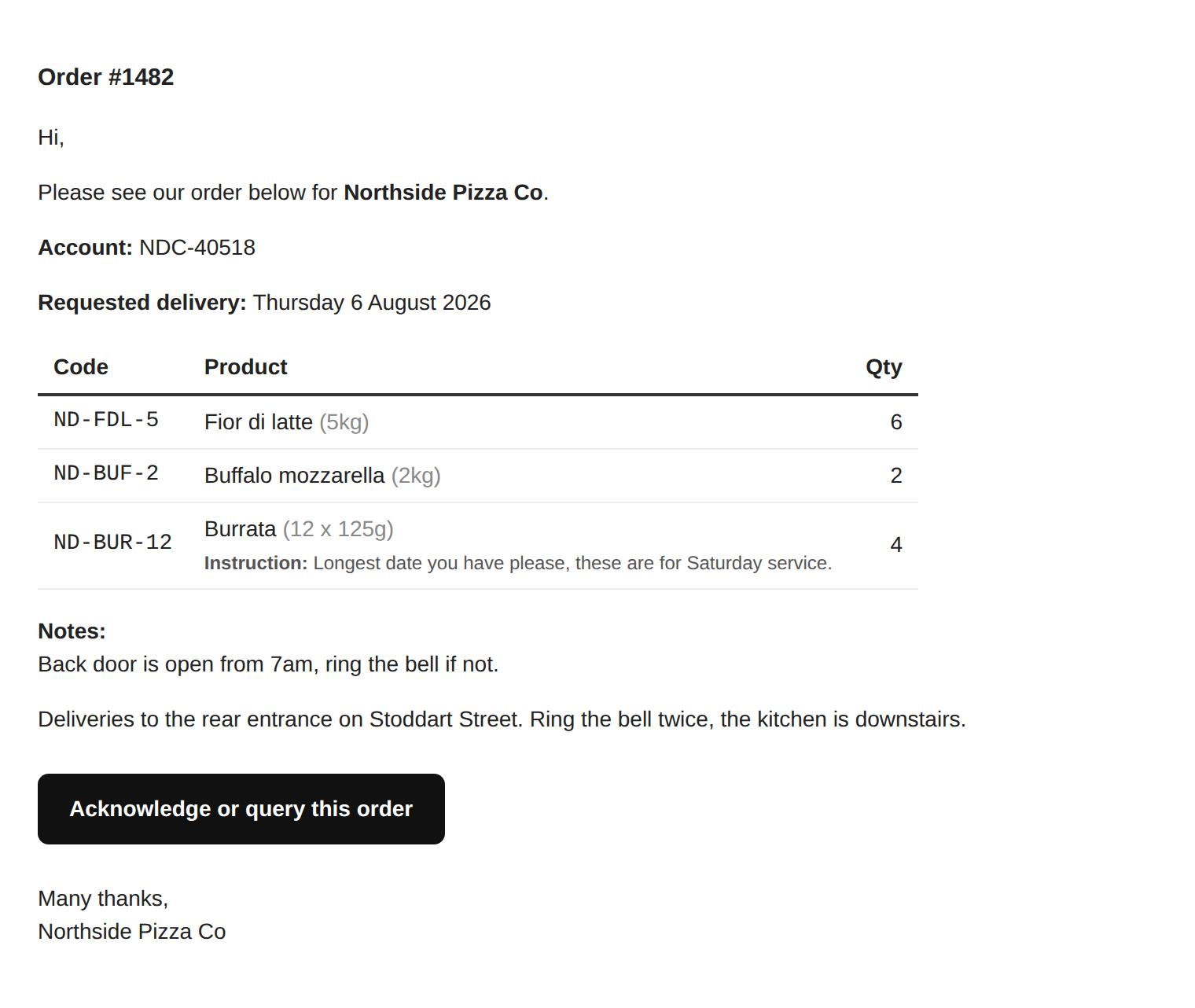
Set the delivery date, or tick ASAP if it is a chase. Add a note if there is something the supplier needs to know for this order specifically, for example that the back gate is locked before nine.
Notes you set on the supplier itself, back in step seven, go on every emailed order to that supplier automatically. This note is just for this order.
See exactly who is getting what before anything sends
This is the moment Restockd exists for. Your single list is grouped by supplier, with the lines and quantities assigned to each. Read it carefully. Emailed suppliers receive their own block. Website suppliers move to Portal orders for placement instead.
If something is under the wrong supplier, fix the supplier saved on that product. Future orders will then use the corrected supplier.
Nothing leaves the building without a yes
When an order needs approval, it waits on the Approvals screen. An Owner, Staff Manager or authorised PIN user checks the split and releases it. Owners, Staff Managers and anyone with the approve-orders right act directly on their own orders.
Emailed suppliers are sent only their own lines, delivery date, notes and business name. Website supplier parts move to Portal orders instead. History records what happened for each supplier, including queued or failed sends.
Worth knowing
• Do not resend blindly after a failure. Check History first so you do not create a duplicate. Where amendments are enabled, Restockd creates a versioned replacement and contacts only the suppliers whose effective order changed.
• Approval rules can be adjusted to suit the business. Owners and Staff Managers act directly. Other people can be held by the account-wide rule, and PIN users can also carry a person-level approval restriction.
Your sent order history and a fast way to build the next one
Order history keeps sent order records until an Owner deliberately clears them. Open a past order to see what was prepared for each supplier and what happened when it was sent. Reorder copies its lines into a fresh draft for review and adjustment. It never sends automatically.
Export a single order as CSV or print it to save as a PDF. You can also download the full history as CSV for your accountant. Your data is yours and you can take it out whenever you want.
PINs and deciding what each person can do
Restockd has two ways in. Owners, Staff Managers and Order Placers sign in with their email address and a one-time six-digit code. There is no Restockd password. Where PIN staff are included, other team members can use a six-digit or longer PIN in the paired Restockd tablet app. You decide what each person can reach.
Ordering Build and submit orders. Approval rules can still hold them before suppliers are contacted.
Orders need approval Use this restriction when that person’s orders must be checked before sending.
Place portal orders Place orders on supplier websites and approve pending orders. Give this only to trusted people.
Add or edit products Change the catalogue. Product additions can still wait for approval before they become orderable.
Add or edit suppliers Change supplier setup, including the address future order emails use. Keep this tight.
The settings you actually want, set before you go live
Go to Settings and upload your logo, then set your sidebar and accent colours. This takes two minutes and it matters more than it sounds. When your team opens it and sees your name on it, it stops being another piece of software and starts being the way your kitchen orders.
If you do not upload a logo, Restockd shows your business name. If you set neither, you get the Restockd mark until you do.
Worth knowing
• There is a reset button next to the colours, so you cannot permanently ruin it.
• The logo shows in the sidebar on desktop and in the top bar on a phone.
What you are actually saving
The top of the order screen counts what you have actually done: orders processed, supplier emails sent, hours saved and an estimated return on what you pay. The hours and the return are worked out from assumptions you set in Settings, so set them to something you would stand behind. It is not there to be pretty. It is there so that when somebody asks whether this thing is worth paying for, the answer is on the screen.
That is the whole product
• Suppliers loaded, products in, sections set and the right access given to each person.
• Enter what you need, review the split, approve where required and send.
• Everything after that is just doing it again next week, faster.
Need a hand with setup?
Send us your supplier list and your product spreadsheet and we will get you loaded and live. No charge on any plan.